Tuto User Guide
Tuto is a desktop app that helps parents manage a list of freelance tutors for their children. It is optimised for users who prefer typing commands over clicking through menus, while still providing a clean visual interface to view tutor information at a glance.
Who is this guide for? This guide is written for parents who are comfortable using a keyboard and want to manage tutor contacts efficiently. No prior technical experience is required — if you can open a terminal and type commands, you are ready to use Tuto.
Table of Contents
- Tuto User Guide
Quick Start
Follow these steps to get Tuto running on your computer in under 5 minutes.
Step 1 — Install Java
Tuto requires Java 17 or above.
- Windows / Linux: Download Java 17 from Adoptium.
- Mac: Follow the exact installation steps here, as the standard Mac JDK may not be compatible.
To verify your Java version, open a terminal and run:
java -version
You should see 17 or higher in the output.
Step 2 — Download Tuto
Download the latest tuto.jar file from the Tuto releases page.
Move the file into a dedicated folder (e.g. ~/tuto/). This folder will store your data going forward.
Step 3 — Launch Tuto
- Open a terminal (Command Prompt on Windows, Terminal on Mac/Linux).
- Navigate to the folder containing
tuto.jar:cd ~/tuto - Run the application:
java -jar tuto.jar
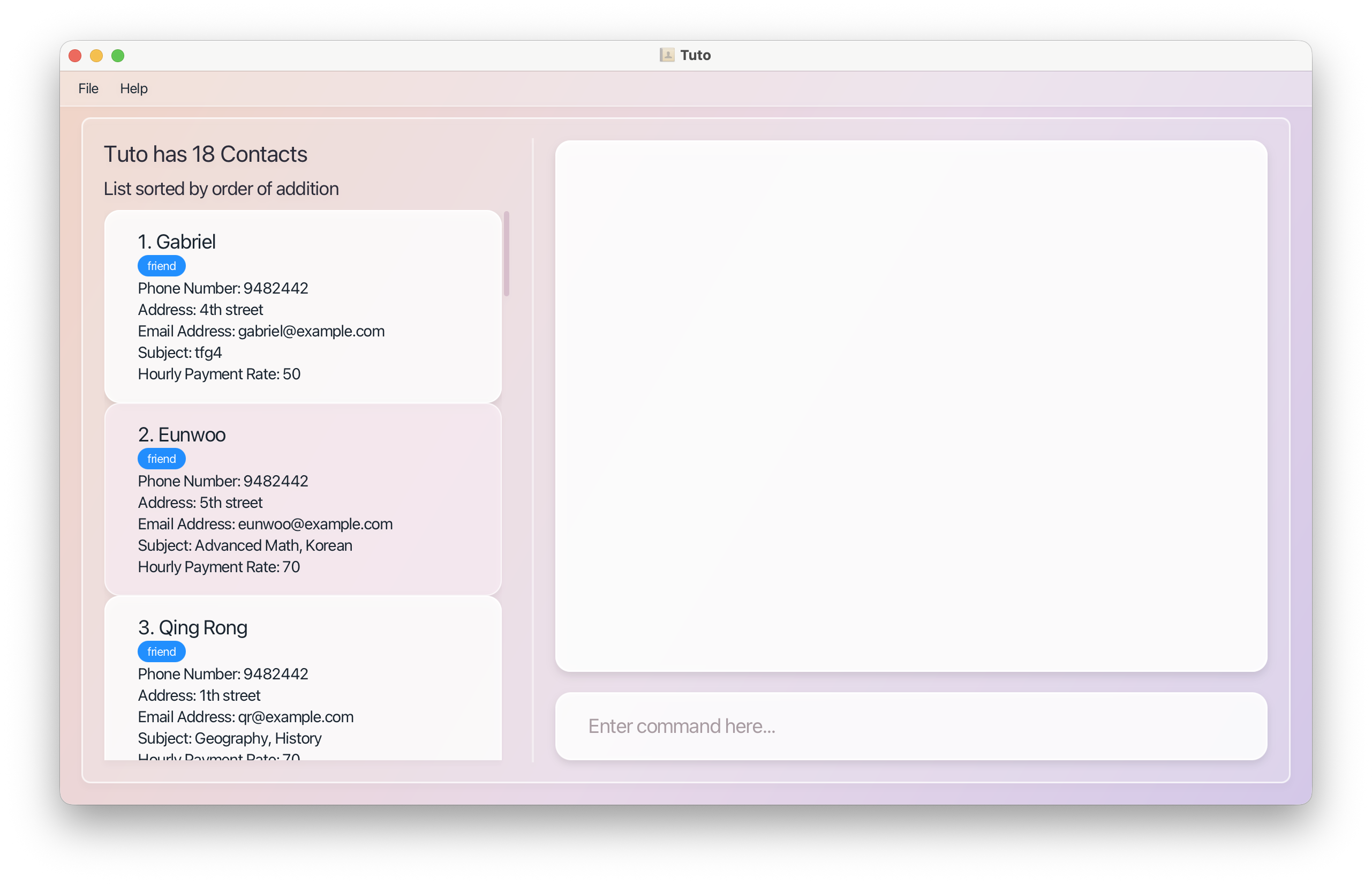
A window similar to the one below should appear within a few seconds, pre-loaded with sample tutor data.
Step 4 — Try Your First Commands
Type a command into the Command Box at the top and press Enter to run it. Here are a few to try:
| What you want to do | Command to type |
|---|---|
| View all tutors | list |
| Add a new tutor | add n/Jane Smith p/91234567 e/jane@example.com s/Mathematics r/60 |
| Find tutors by subject | find s/Mathematics |
| Sort tutors by name (A–Z) | sort name asc |
| Delete the 1st tutor | delete 1 |
| Open help | help |
| Exit the app | exit |
Tip: The Command Summary at the bottom of this guide is a handy reference once you are familiar with the commands.
Understanding the Interface
Tuto's interface has three main areas:
- Command Box — where you type your commands
- Result Display — shows feedback after each command (success messages or error details)
- Tutor List Panel — displays all tutor profiles matching the current view
Each tutor card in the panel shows the tutor's name, phone number, email, subject, and hourly rate. Tags (if any) appear as labels on the card.
Features
Notes on Command Format
The following conventions apply to all commands in this guide:
Words in
UPPER_CASEare values you supply.
e.g. inadd n/NAME, replaceNAMEwith the tutor's actual name:add n/John Doe.Items in
[square brackets]are optional.
e.g.[a/ADDRESS]means the address field can be left out.Items followed by
…can be used multiple times.
e.g.[t/TAG]…allows zero, one, or more tags:t/home,t/experienced t/recommended.Parameters can be given in any order.
e.g.n/NAME p/PHONEandp/PHONE n/NAMEare both valid.Extra parameters are ignored for commands that take none (such as
help,list,exit, andclear).
e.g.help 123runs ashelp.
Note for PDF users: If you copy commands from a PDF, line breaks may introduce unexpected spaces. Re-type the command manually if it does not execute as expected.
Displayed indices change after sort and delete
Commands such as edit and delete use INDEX: the number shown beside each tutor in the Tutor List Panel for the current list order.
- After a
sortcommand, tutors are reordered, so the same person may appear at a different index than before. - After a
deletecommand, the list becomes shorter and tutors below the removed row shift up, so their indices are renumbered (what was “tutor 5” may become “tutor 4”).
Always look at the Tutor List Panel again before typing the next edit or delete command. Do not assume indices from an earlier step are still correct.
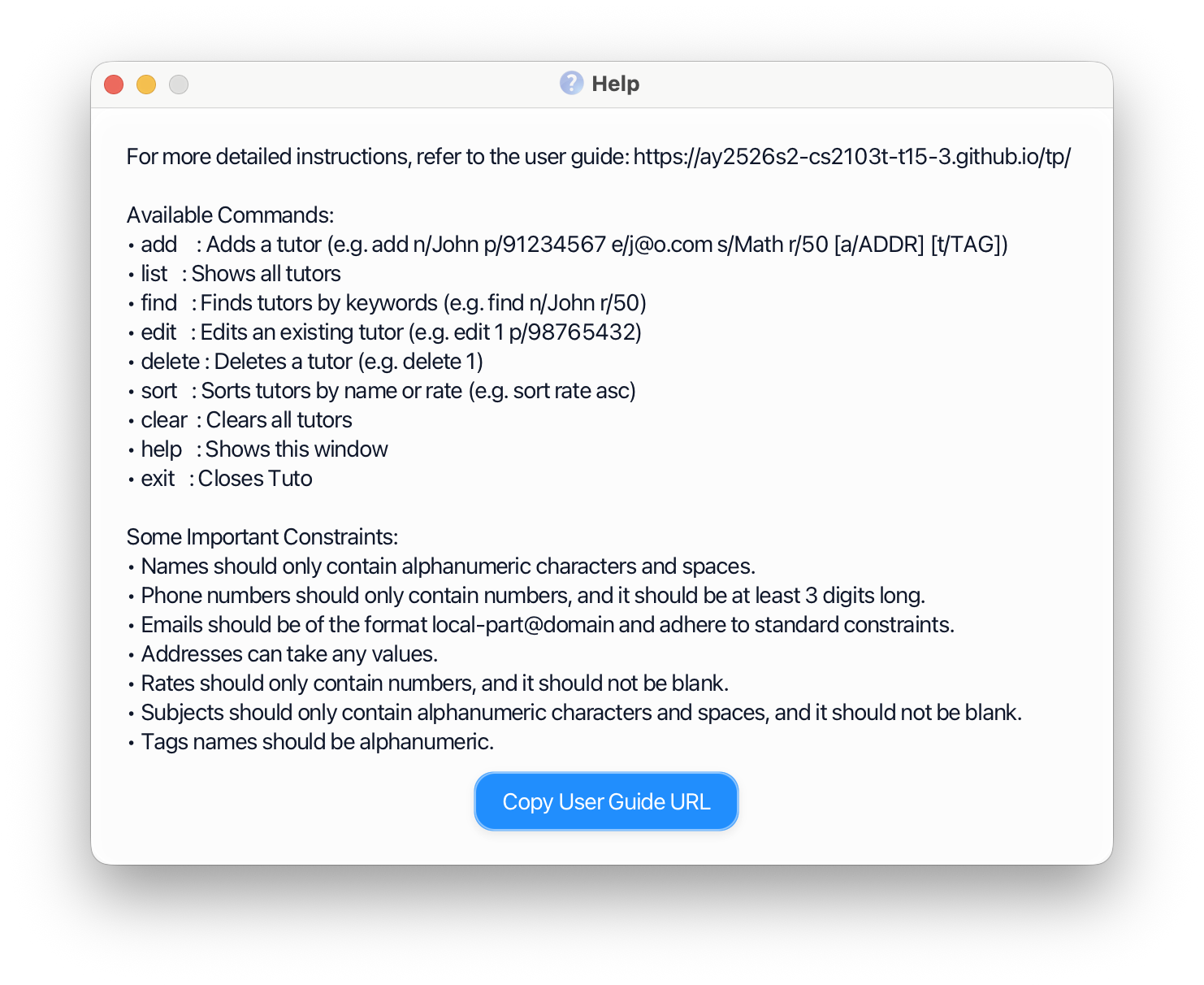
Viewing Help : help
Opens a link to this User Guide.
Format: help
Expected output: A pop-up window appears with a link to the online User Guide.
Clearing all entries: clear
Clears all entries from the address book.
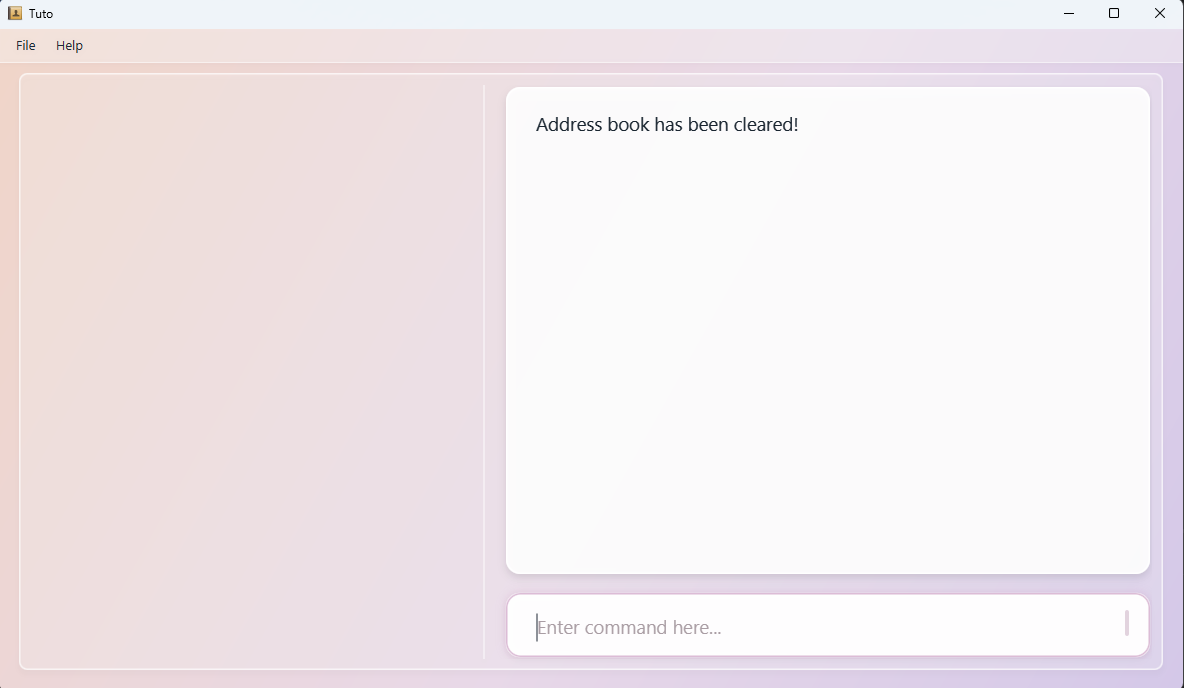
Format: clear
Adding a Tutor : add
Adds a new tutor profile to Tuto.
Format: add n/NAME p/PHONE_NUMBER e/EMAIL s/SUBJECT1 s/SUBJECT2 ... s/SUBJECTn r/RATE [a/ADDRESS] [t/TAG]…
| Flag | Field | Required? | Accepted values |
|---|---|---|---|
n/ | Name | Yes | Any non-empty text |
p/ | Phone number | Yes | Digits only, at least 3 digits |
e/ | Yes | Valid email format (e.g. user@example.com) | |
a/ | Address | No | Any text |
s/ | Subject | Yes | Any non-empty text (e.g. Mathematics, Biology) |
r/ | Hourly rate (SGD) | Yes | Positive number |
t/ | Tag | No | Alphanumeric, no spaces |
Tip:
- Tags are powerful ways to organise contacts. You can use multiple tags in a tutor contact to provide more information, e.g.
t/homefor home tutoring services. - A person can have any number of tags (including 0) and more than one subjects.
- The parameters of the command can be entered in any orders.
Note: Adding a tutor with the same name, phone number, or email as an existing entry is not allowed. Tuto treats each field as unique and will reject the operation if any duplicate is detected. If two tutors happen to share a name, consider using a middle initial to differentiate them.
Examples:
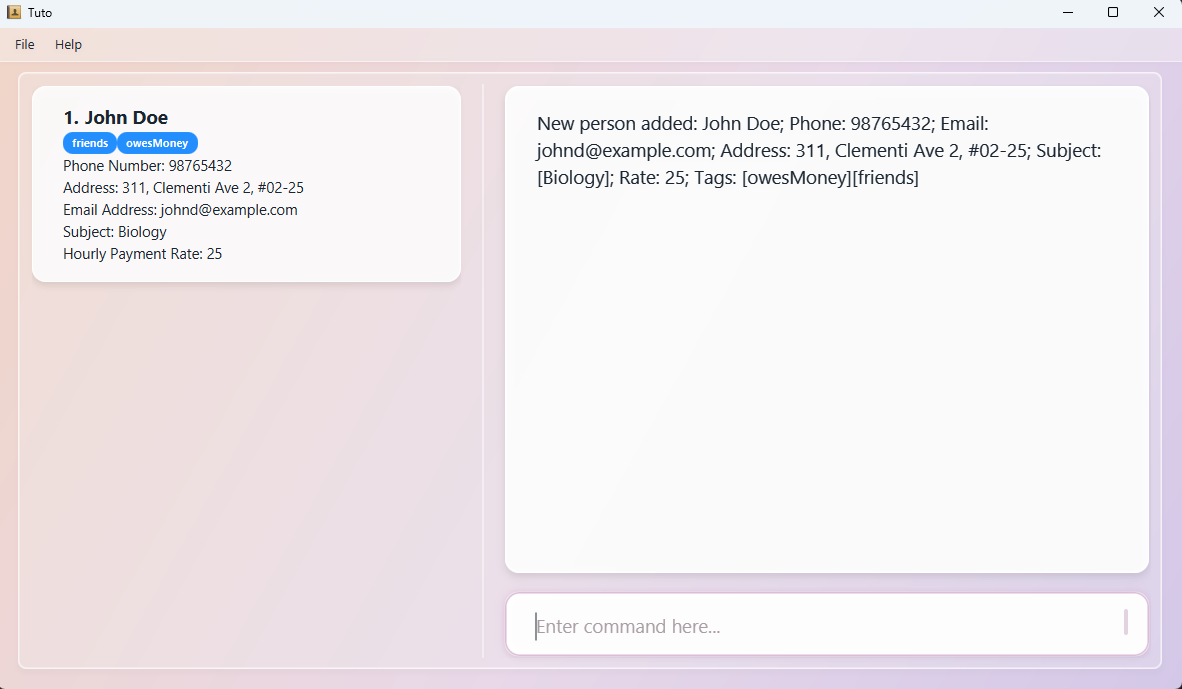
add n/John Doe p/98765432 e/johnd@example.com s/Chemistry r/50
Adds John Doe as a Chemistry tutor charging $50/hr, with no address or tags.
add n/Betsy Crowe p/1234567 e/betsycrowe@example.com a/Newgate Prison s/Biology r/55 t/experienced t/recommended
Adds Betsy Crowe as a Biology tutor with an address and two tags.
Expected output:
New person added: John Doe; Phone: 98765432; Email: johnd@example.com; Address: ; Subject: Chemistry; Rate: 50; Tags:
Listing All Tutors : list
Displays all tutor profiles stored in Tuto.
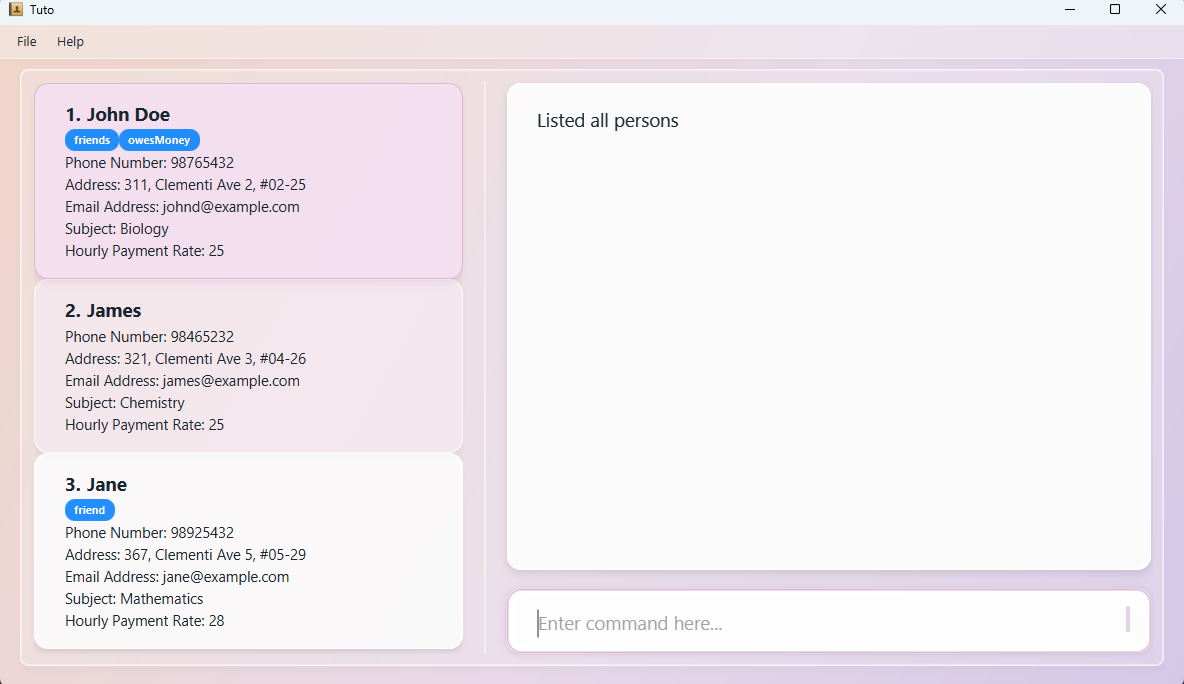
Format: list
Expected output: The Tutor List Panel refreshes to show all contacts. The Result Display shows the total number of tutors listed.
Tip: Use list to reset the view after a find command has filtered your results.
Sorting the Tutor List : sort
Changes the order of tutors in the Tutor List Panel. Sorting is by name or hourly rate only; it does not remove or hide tutors.
Format:
sort FIELD ORDER
| Part | Meaning | Allowed values |
|---|---|---|
FIELD | What to sort by | name or rate (case-insensitive) |
ORDER | Sort direction | asc (ascending) or desc (descending) (case-insensitive) |
- Name: Alphabetical order by full name (case-insensitive).
- Rate: Numeric order by hourly rate. If two tutors have the same rate, they are ordered by name (ascending) as a tie-break.
Examples:
sort name asc
Shows tutors from A → Z by name.
sort rate desc
Shows highest hourly rate first.
Expected output: A confirmation message in the Result Display, and the Tutor List Panel updates to the new order. The header above the list also reflects the active sort.
Indices update after sorting: Because edit and delete use the position number in the current list, running sort changes which tutor is at each index. See Displayed indices change after sort and delete before your next command.
Editing a Tutor Profile : edit
Updates one or more fields of an existing tutor profile.
Format:
edit INDEX [n/NAME] [p/PHONE] [e/EMAIL] [a/ADDRESS] [s/SUBJECT] [r/RATE] [t/TAG]…
INDEXrefers to the number shown next to the tutor in the current list. It must be a positive integer (1, 2, 3 …).- After a
sortordelete, indices may no longer match what you saw earlier — see Displayed indices change aftersortanddelete. - At least one field must be provided.
- Existing values are replaced with the new values you provide.
Note: Editing tags replaces all existing tags — it does not add to them. To remove all tags, use t/ with nothing after it. To keep existing tags while adding a new one, you must retype all the tags you want to keep.
Note: Editing a tutor with the same name, phone number, or email as an existing entry is not allowed. Tuto treats each field as unique and will reject the operation if any duplicate is detected. If two tutors happen to share a name, consider using a middle initial to differentiate them.
Examples:
edit 1 p/91234567 e/johndoe@example.com
Updates the phone number and email of the 1st tutor in the list.
edit 2 n/Betsy Crower t/
Renames the 2nd tutor and removes all of their tags.
edit 1 s/Physics r/30
Changes the 1st tutor's subject to Physics and rate to $30/hr.
Expected output:
Edited Person: John Doe; Phone: 91234567; Email: johndoe@example.com; Address: ; Subject: Chemistry; Rate: 50; Tags:
Finding Tutors : find
Search for tutors by keyword, name, subject, or hourly rate — or combine them for precise filtering.
Prefixes
| Prefix | Filters by | Behaviour |
|---|---|---|
n/NAME_KEYWORDS | Name | Prefix match · Case-insensitive · Space-separate multiple keywords · Only one n/ allowed |
s/SUBJECT | Subject taught | Prefix match · Case-insensitive · Multiple s/ allowed (AND logic) |
r/RATE | Hourly rate | Exact, range, or comparison match · Only one r/ allowed |
Tip: Spaces after prefixes are optional — find n/John and find n/ John both work.
Search Modes
| Mode | Syntax | Returns |
|---|---|---|
| General Search | find KEYWORD [MORE_KEYWORDS] (case-insensitive) | Tutors where any attribute has a word starting with any keyword |
| Filtering | find [PREFIXES] (case-insensitive) | Tutors matching all prefix conditions |
| General + Filter | find KEYWORD [MORE_KEYWORDS] [PREFIXES] (case-insensitive; keywords before prefixes) | Tutors matching any keyword, narrowed by all prefix conditions |
How Matching Works
Name (n/) — OR logic across keywords
n/Edmatches "Eddy", "Edward", "Eddie" etc.n/Dar Vicmatches tutors named "Dar…" or "Vic…" e.g. "Daren", "Victoria"
Subject (s/) — AND logic across prefixes
s/Matmatches "Math", "Mathematics"s/Math s/Chemistryreturns tutors teaching Math and Chemistry
Rate (r/) — supports four formats
| Format | Example | Matches |
|---|---|---|
| Exact | r/RATE | Tutors charging exactly RATE |
| Range | r/RATE1-RATE2 | Tutors charging between RATE1 and RATE2 (inclusive) |
| Above | r/>RATE | Tutors charging more than RATE |
| Below | r/<RATE | Tutors charging less than RATE |
Mixed prefixes — all conditions must be met
find n/Alex r/40 s/Math→ named "Alex…", rate $40, teaches Math
Examples
General Search
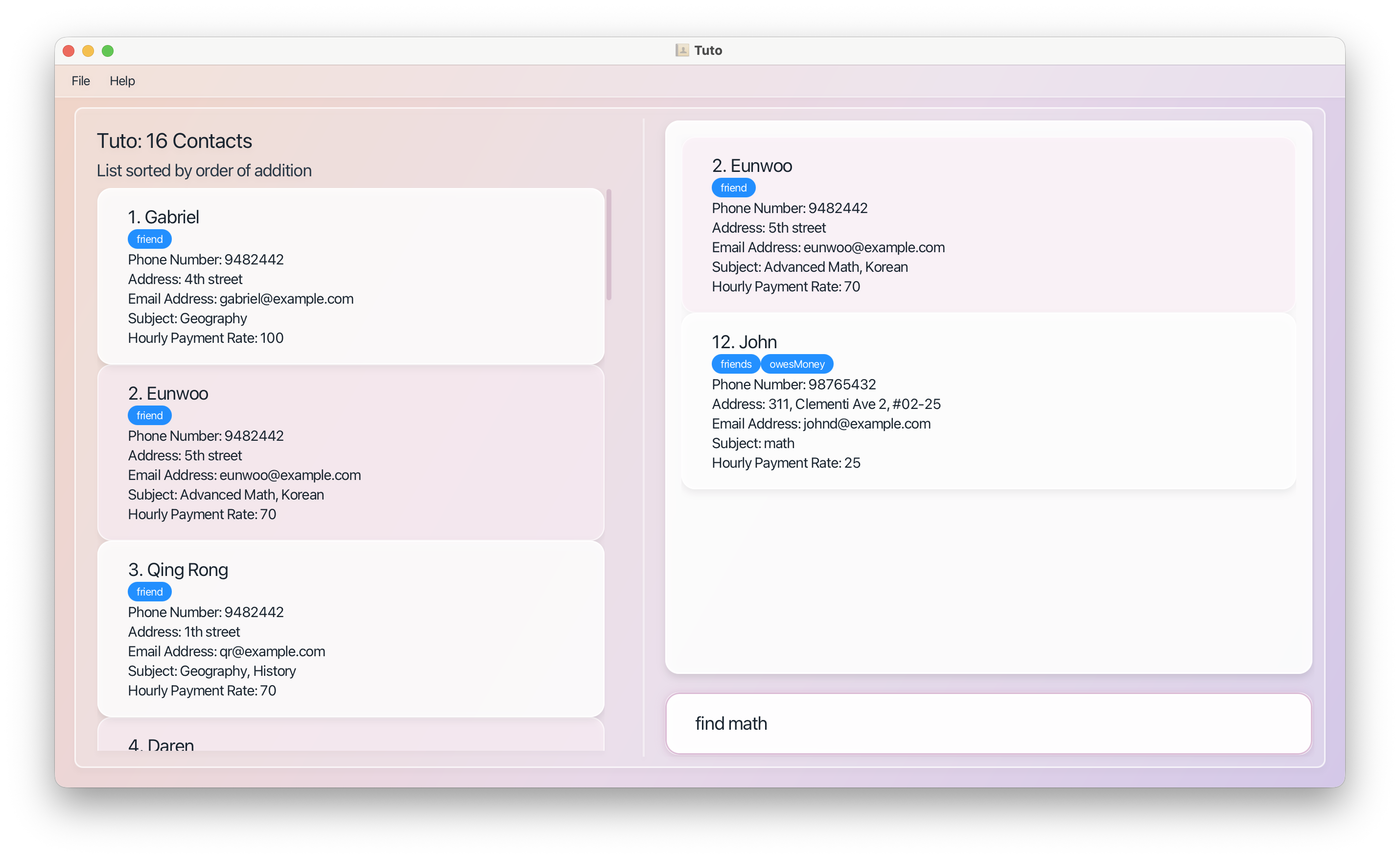
find math
Returns all tutors containing "math" in any field.
Filtering by name
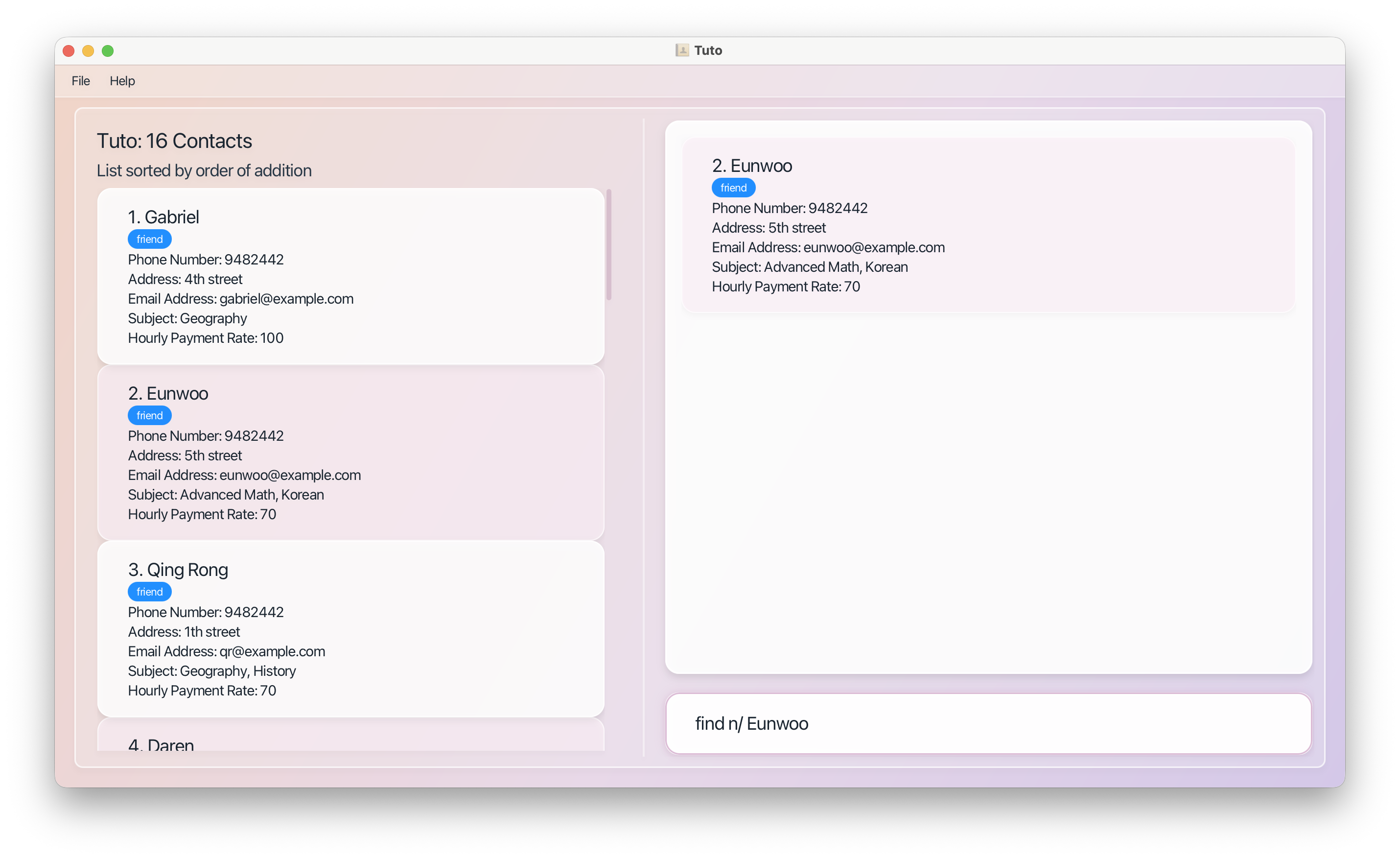
find n/Eunwoo
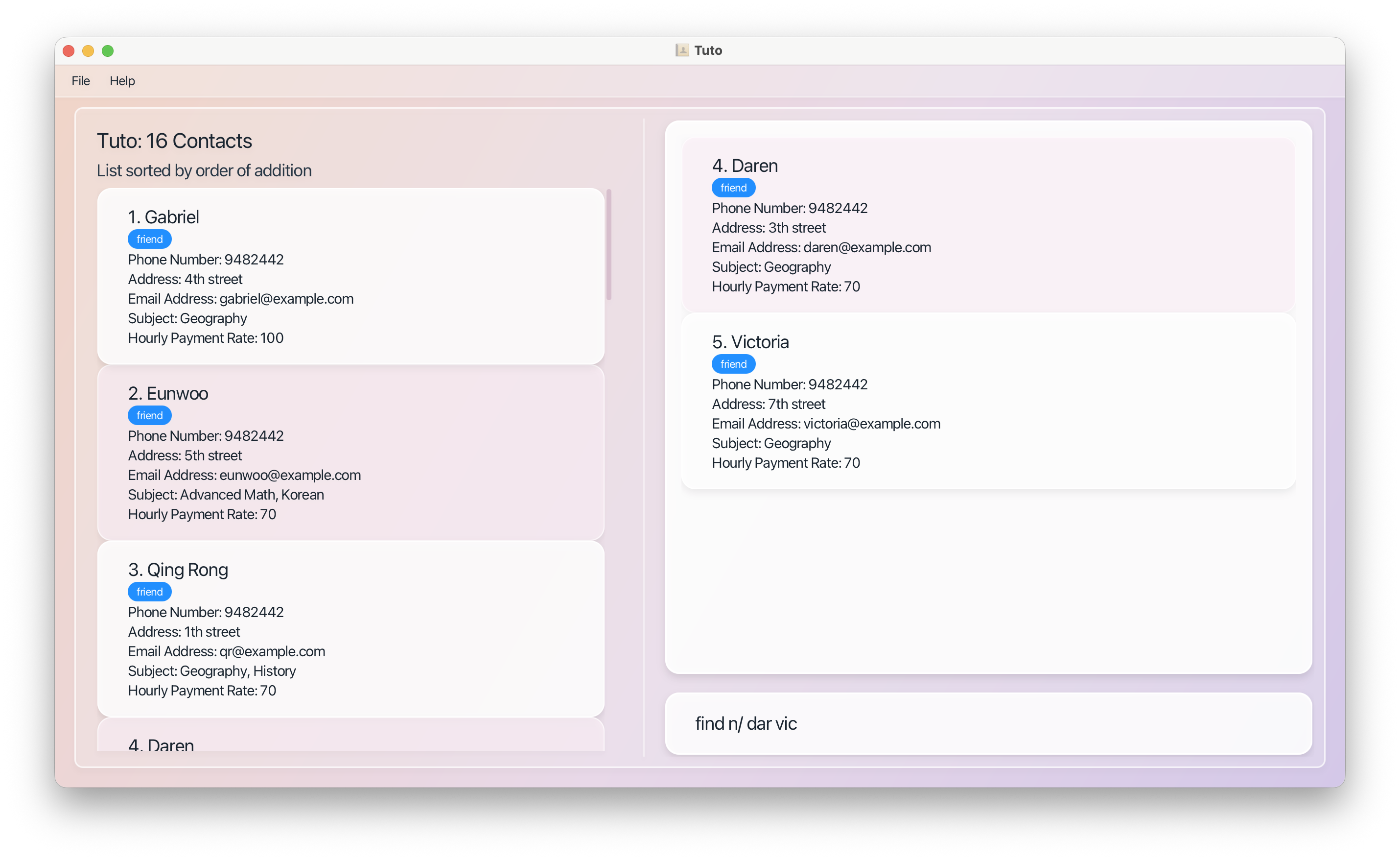
find n/Dar Vic
Returns tutors named "Eunwoo…"
Returns tutors named "Dar…" or "Vic…" respectively.
Filtering by subject and rate
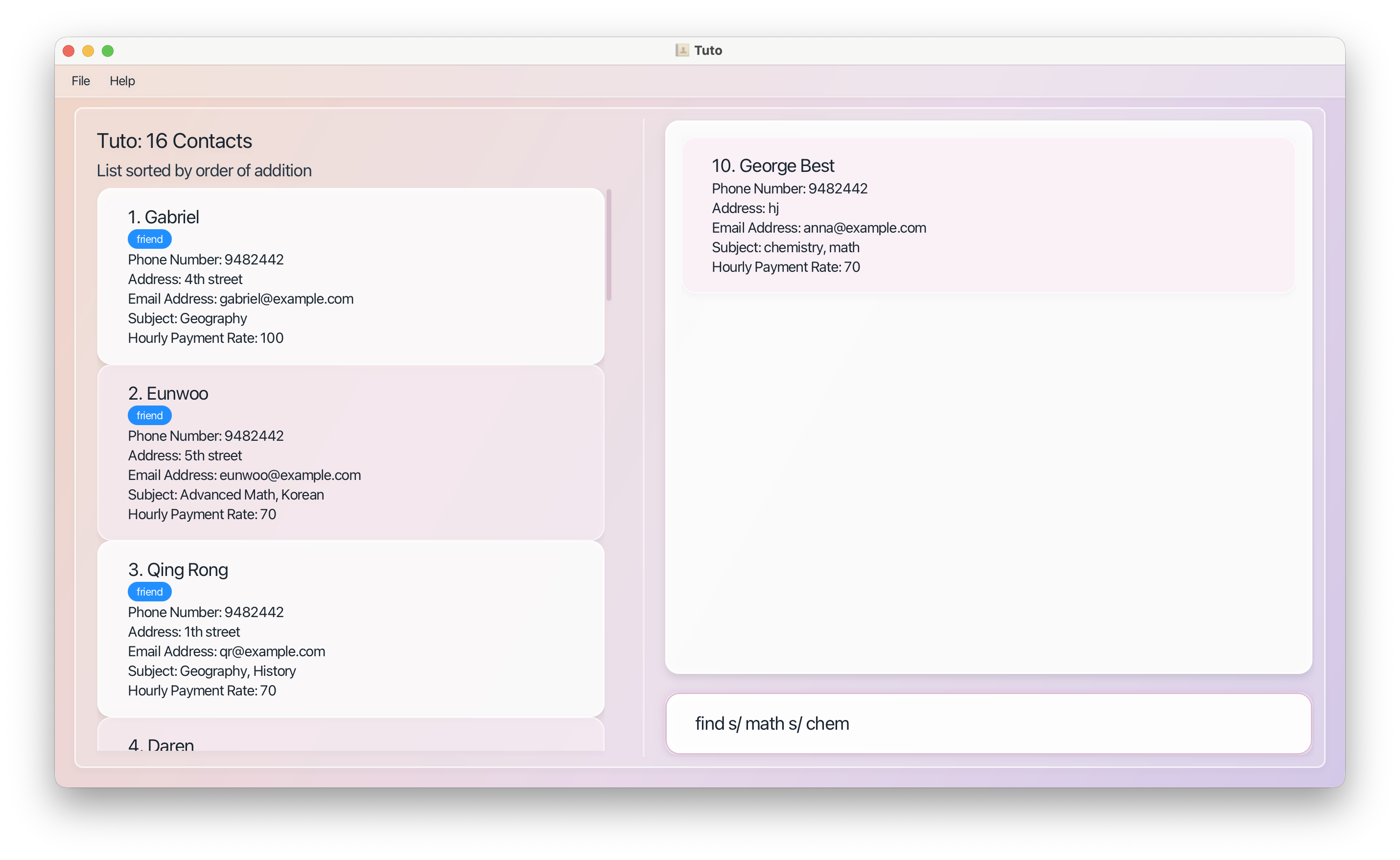
find s/Math s/Chemistry
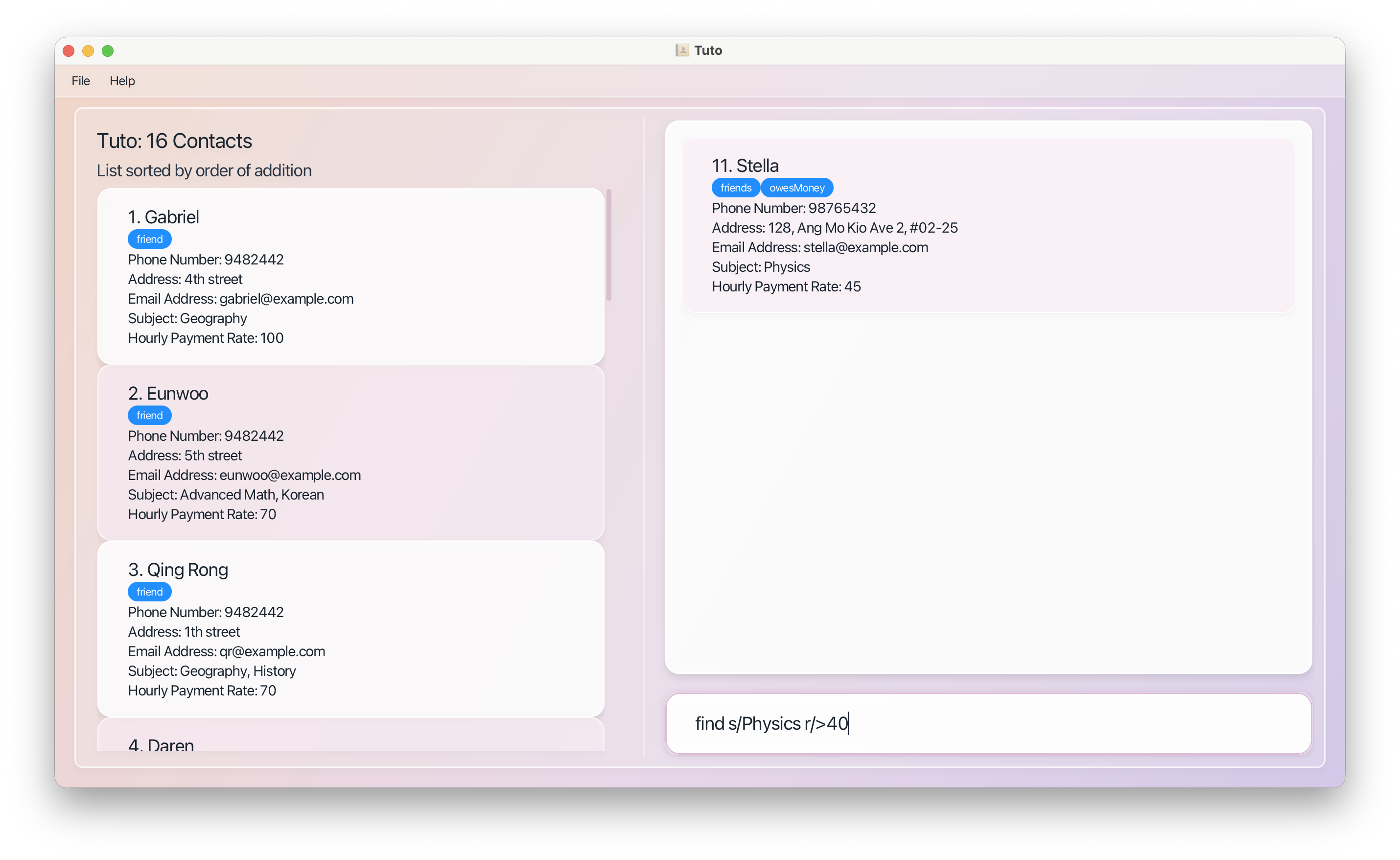
find s/Physics r/>40
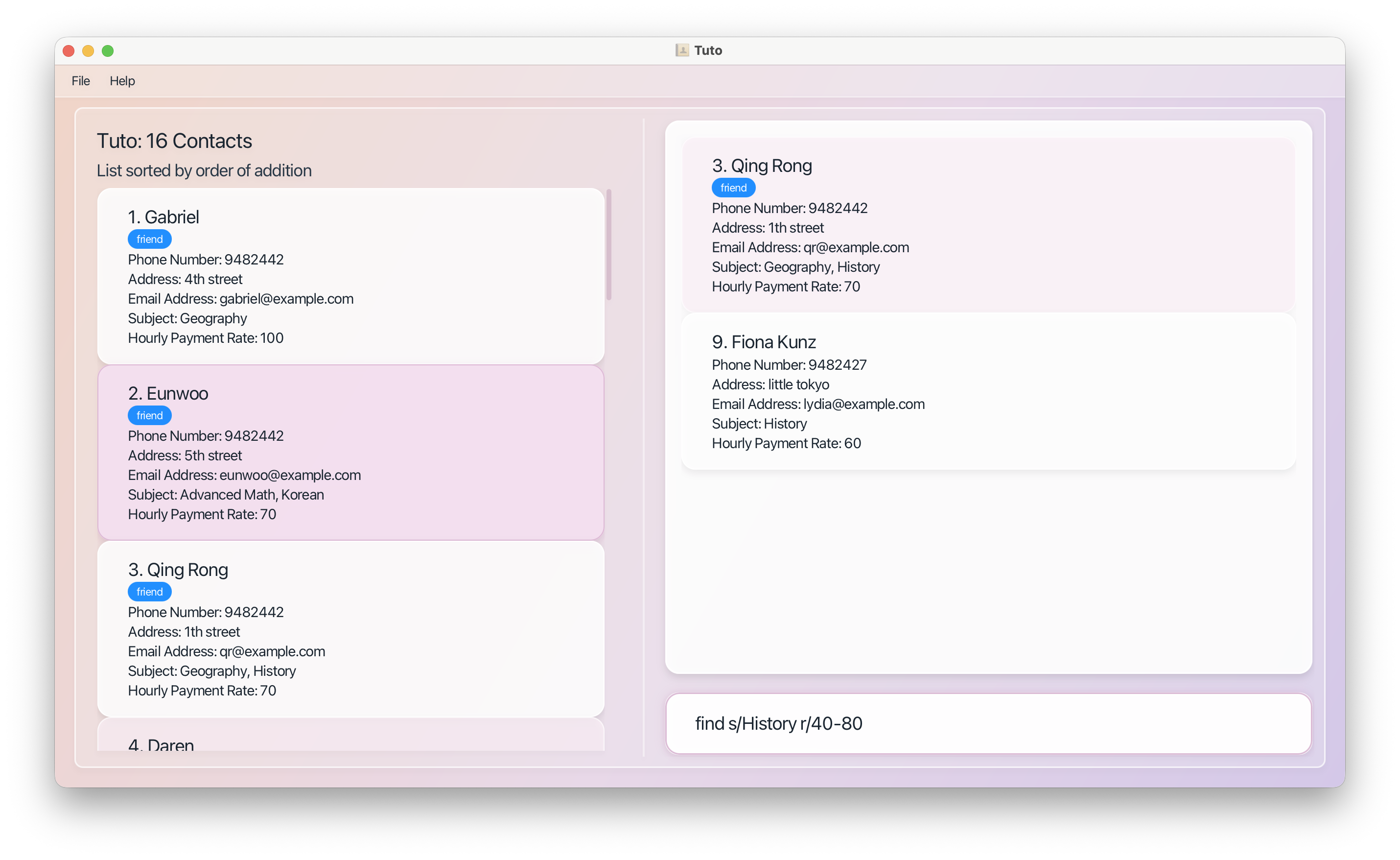
find s/History r/40-80
Returns tutors teaching Math and Chemistry
Returns tutors teaching Physics above a rate
Returns tutors teaching History within a rate range
Combined search
find math s/advanced math
find n/Qi r/60 s/History
Narrows a general keyword search with prefix filters, or combines multiple prefix conditions.
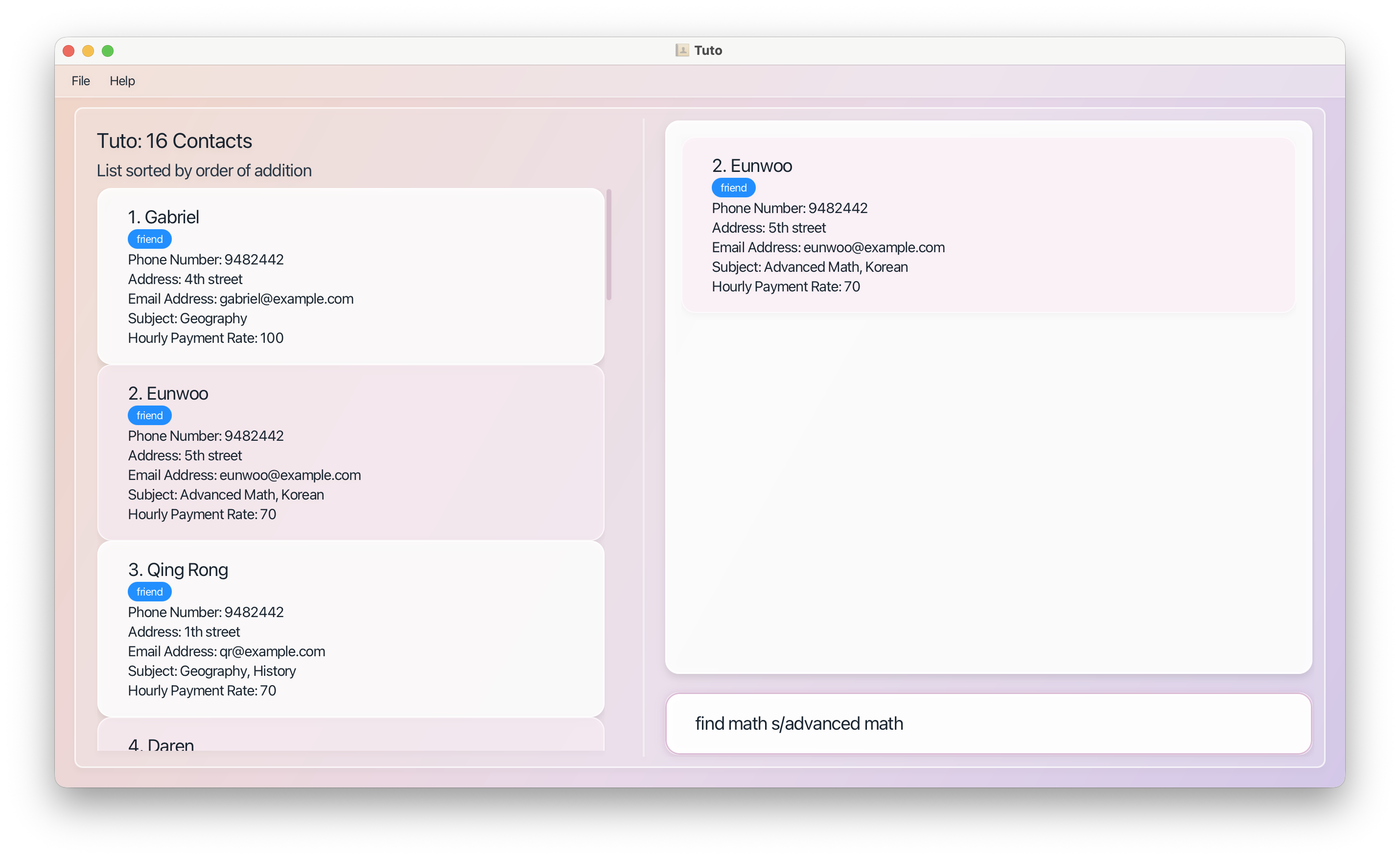
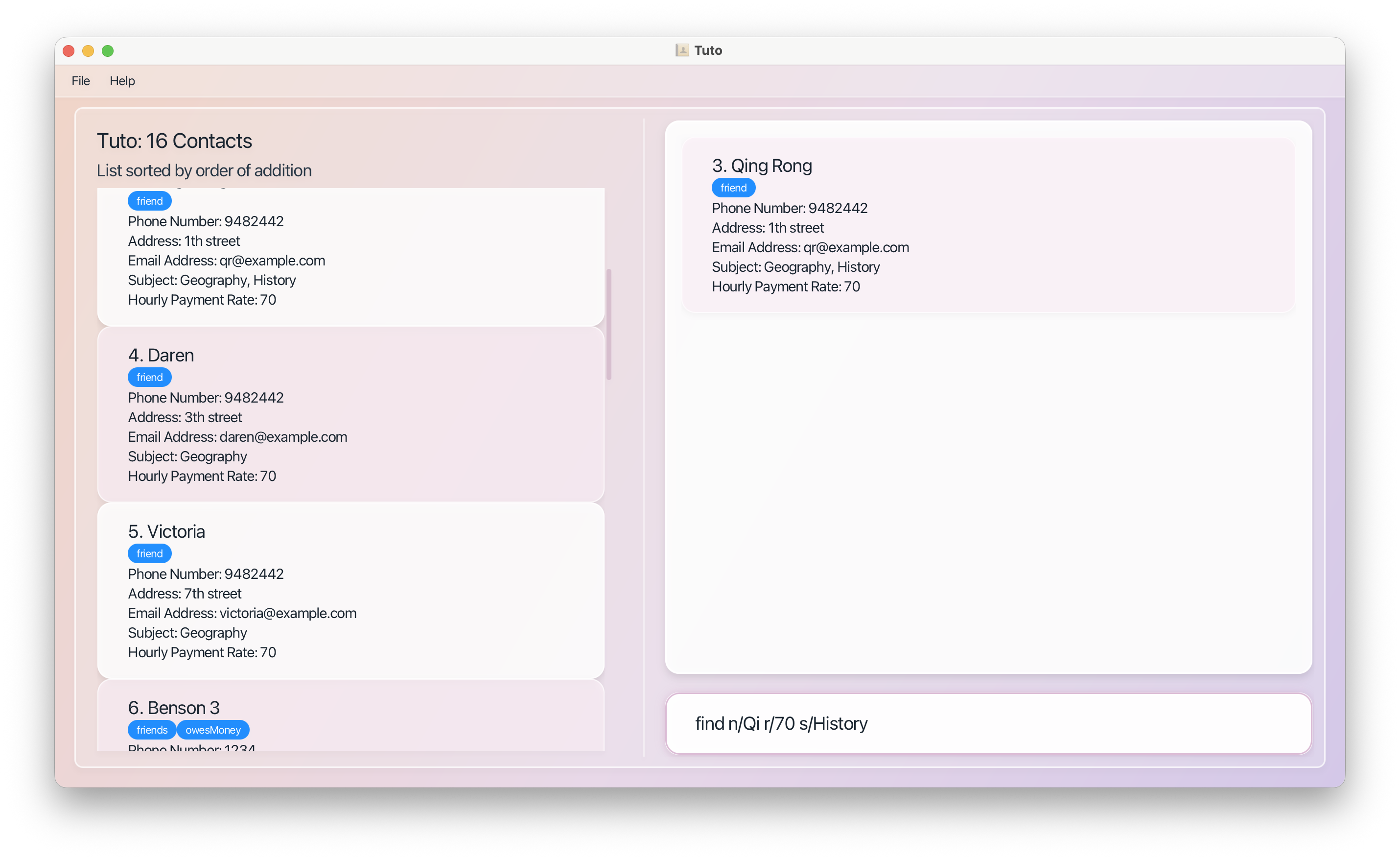
Matching tutors appear in the right panel. If no matches are found:
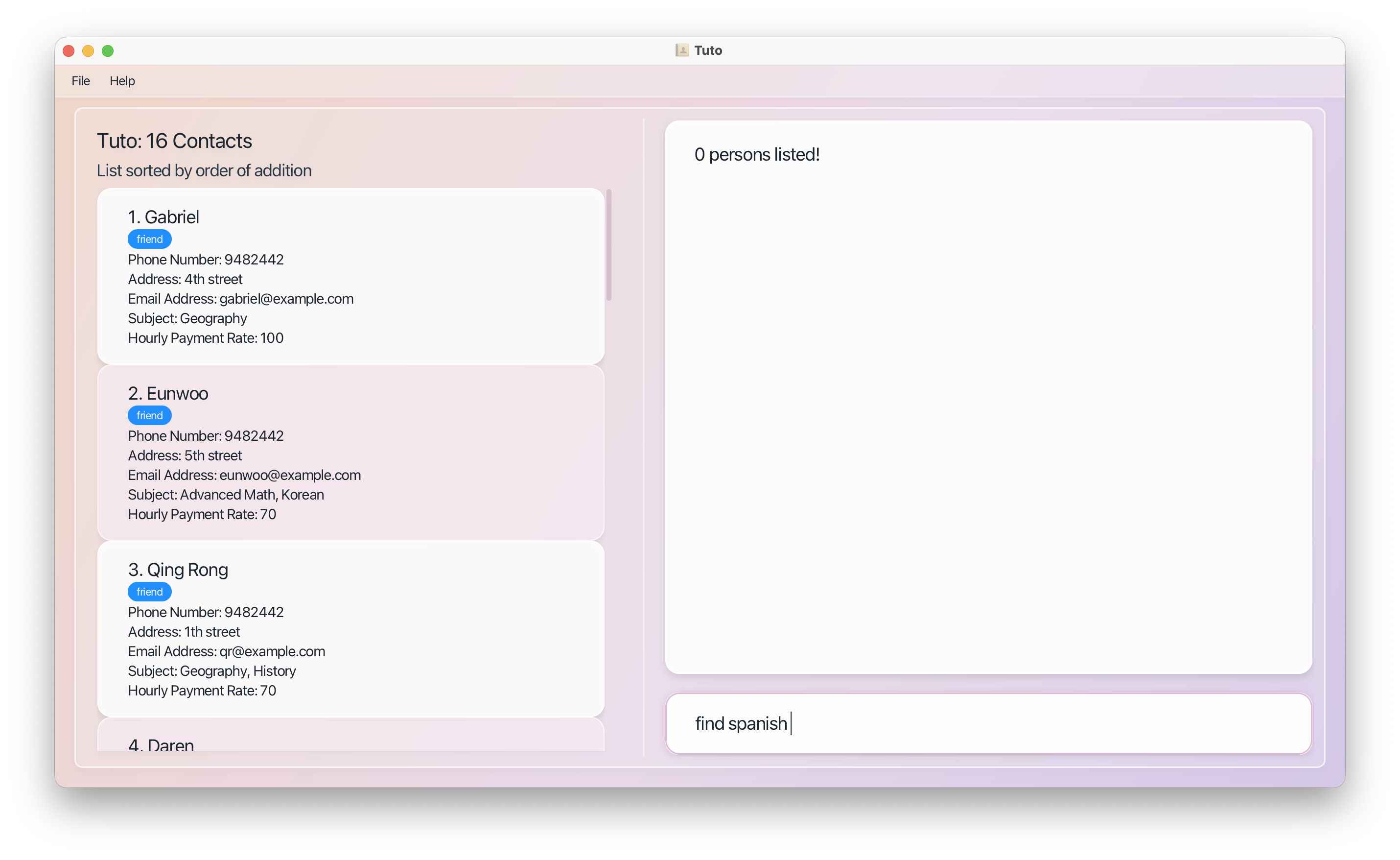
Tip: After a find, run list to return to the full tutor list when running on CLI.
Invalid Usage
Only one n/ and one r/ are allowed per command.
| ❌ Invalid | Reason |
|---|---|
find r/16 r/17 | Multiple r/ not allowed |
find n/Alice n/Bob | Multiple n/ not allowed |
Deleting a Tutor : delete
Permanently removes a tutor profile from Tuto.
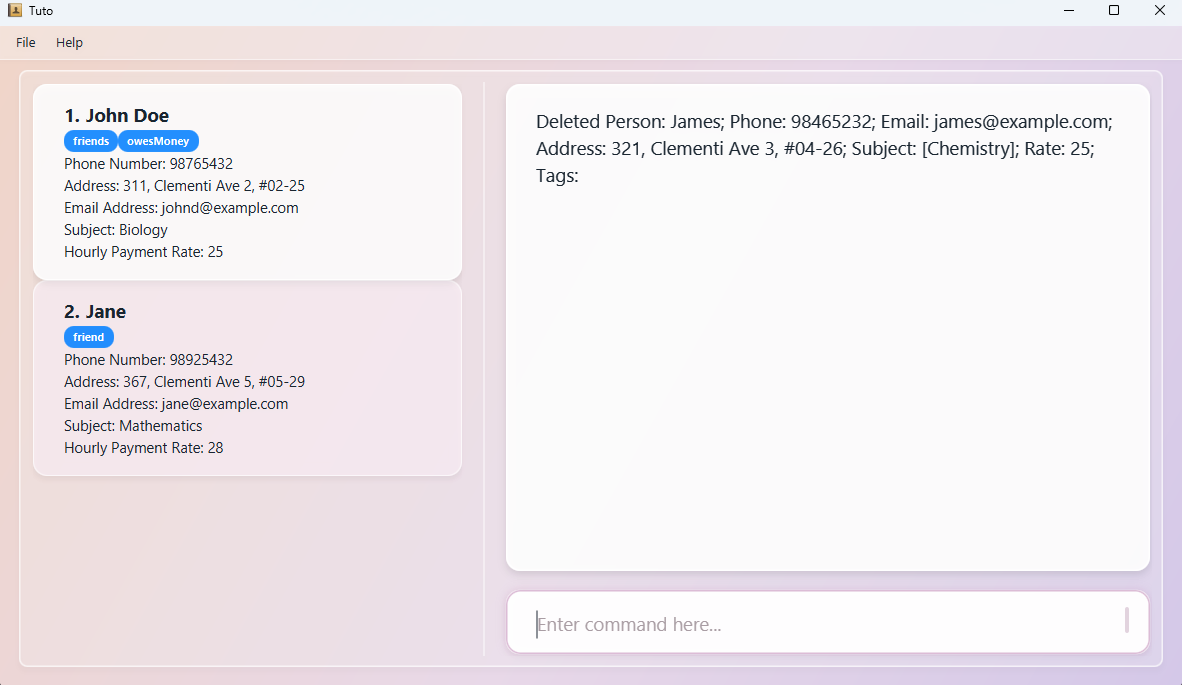
Format: delete INDEX
INDEXmust be a positive integer matching a tutor's position in the currently displayed list.- After you delete someone, every tutor below that row moves up and gets a new index. After a
sort, positions change too. See Displayed indices change aftersortanddelete.
Examples:
list
delete 2
Deletes the 2nd tutor in the full list.
find s/Biology
delete 1
Deletes the 1st tutor returned in the Biology search results.
Expected output:
Deleted Person: Betsy Crowe; Phone: 1234567; Email: betsycrowe@example.com; Address: Newgate Prison; Subject: Biology; Rate: 55; Tags: [experienced][recommended]
Saving Your Data
Tuto's data are saved automatically as a JSON file [JAR file location]/data/Tuto.json. Advanced users are welcome to update data directly by editing that data file.
Caution:
If your changes to the data file makes its format invalid, Tuto will discard all data and start with an empty data file at the next run. Hence, it is recommended to take a backup of the file before editing it.
Furthermore, certain edits can cause the Tuto to behave in unexpected ways (e.g., if a value entered is outside the acceptable range). Therefore, edit the data file only if you are confident that you can update it correctly.
Editing the Data File Directly
Advanced users may edit the data file manually using any text editor.
Caution: If the file is saved in an invalid format, Tuto will discard all data and start fresh on the next launch. Back up the file before making any edits. Additionally, values outside accepted ranges may cause Tuto to behave unexpectedly.
FAQ
Q: How do I move my tutor data to a new computer?
A: Install Tuto on the new computer and run it once to generate the default data folder. Then copy the addressbook.json file from your old computer into the data/ folder on the new one, replacing the empty file.
Q: Tuto opened off-screen after I disconnected an external monitor. What do I do?
A: Delete the preferences.json file in the same folder as tuto.jar, then relaunch the app. This resets the window position.
Q: I ran help again but the Help Window did not appear. Why?
A: The Help Window may be minimised. Check your taskbar and restore it manually.
Known Issues
- Off-screen window after disconnecting a monitor: Delete
preferences.jsonand relaunch Tuto to reset the window position. - Help Window does not reappear: If the Help Window is minimised, running
helpagain will not open a new one. Restore the minimised window from your taskbar.
Command Summary
| Action | Format | Example |
|---|---|---|
| Help | help | help |
| Add | add n/NAME p/PHONE_NUMBER e/EMAIL s/SUBJECT1 s/SUBJECT2 ... s/SUBJECTn r/RATE [a/ADDRESS] [t/TAG]… | add n/James Ho p/22224444 e/jamesho@example.com a/123, Clementi Rd, 1234665 s/Biology r/45 t/friend t/colleague |
| List | list | list |
| Sort | sort FIELD ORDER | sort name asc, sort rate desc |
| Edit | edit INDEX [n/NAME] [p/PHONE] [e/EMAIL] [a/ADDRESS] [s/SUBJECT] [r/RATE] [t/TAG]… | edit 2 n/James Lee e/james@example.com |
| Find | find KEYWORD | find [PREFIXES] | find KEYWORD [PREFIXES] | find geography, find s/Biology r/45, find korean r/>50 |
| Delete | delete INDEX | delete 3 |
| Clear | clear | clear |
| Exit | exit | exit |